For a base of a dozen clients and a hundred records, one evening is enough: start the Markdown & CSV export (Include subpages on) the day before, then drop the archive into Unpack and read the passport of what it found. Nothing is written until you press "Fill the platform", and "Cancel this import" removes exactly that run's records. The wiki, formulas and images won't move, passwords go by hand, and a bigger workspace moves in batches.
Moving between tools usually dies on the second evening: the first one goes on exporting and enthusiasm, the second on retyping clients into new fields, and few people make it to the third. So this piece is about doing the move in one evening, without retyping any tables: Unpack does the work with the files, and checking the result is what’s left for you. One evening is a fair estimate for a base of a dozen clients and a hundred records; a bigger workspace moves in batches, one evening per batch.
This is a guide from Pivona’s founder, so my view is biased. The screenshots are from a demo account, and the numbers on them are for illustration. If you haven’t decided whether to move at all, start with how Pivona is different from Notion.
Step 1. Export from Notion
In Notion, open the workspace settings, go to Settings → Export content, or use the “…” menu on the clients page itself and choose Export. Format: Markdown & CSV. Turn on Include subpages, or the client cards nested inside the database won’t come across.
You’ll get a ZIP archive: each database becomes a CSV file, each page becomes a Markdown file. These are exactly the two formats Unpack reads without any conversion.
Two small things that save you an evening:
- Unpack accepts files up to 15 MB each. If the export of the whole workspace is bigger than that, export each database as a separate file.
- A large Notion workspace can take hours to export, and the download link is valid for a week. Start the export the day before — the evening itself is for going through it.
This step is useful even without Pivona: an archive of Markdown and CSV files can be read by any tool, wherever you’re moving to.
Step 2. Drop the archive into Unpack
Open app.pivona.io/unpack and drag the archive into the drop zone. If you don’t want to sign up yet, the same screen is available without an account at app.pivona.io/try — more on that below.
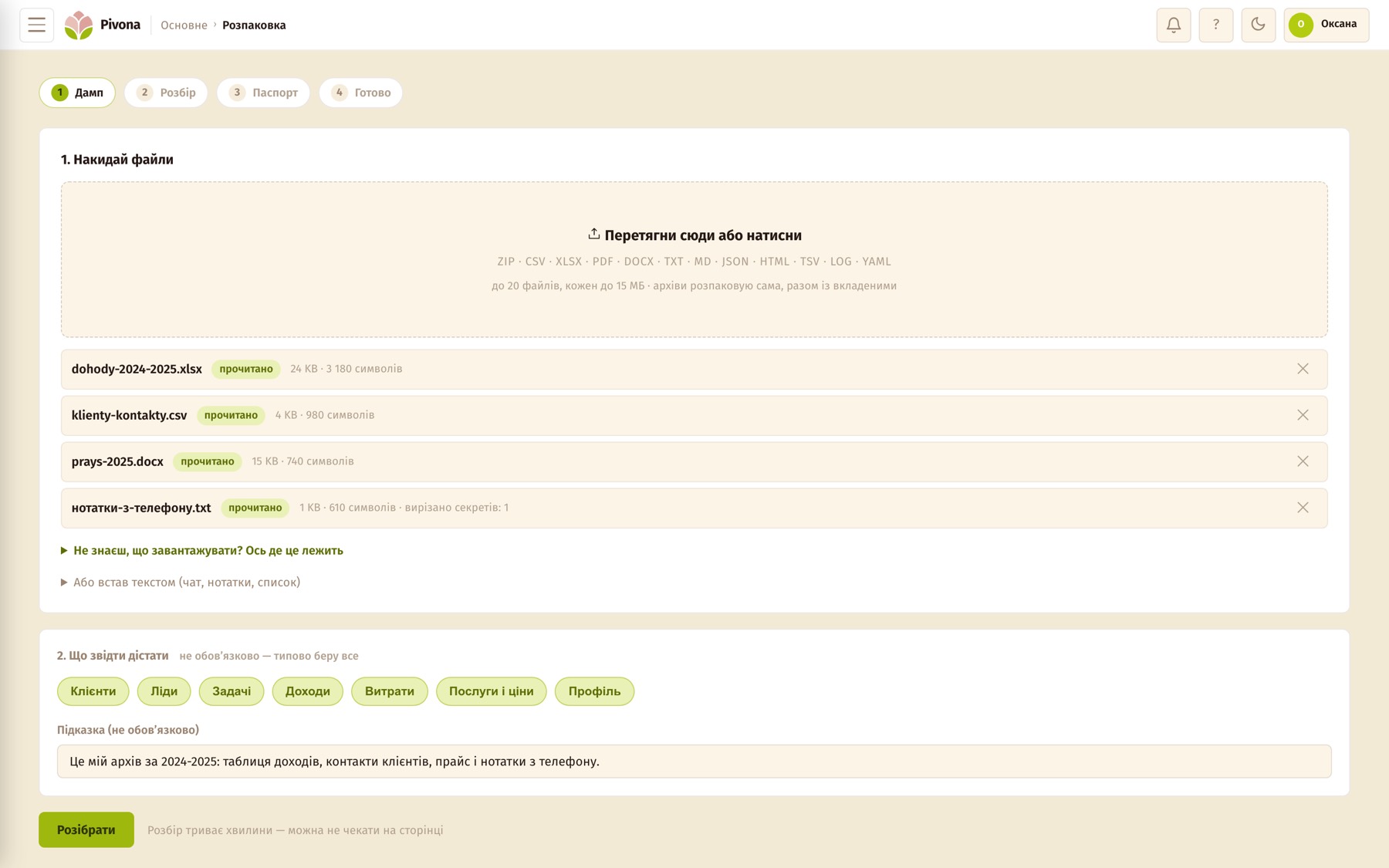
Up to twenty files, each up to 15 MB. It reads all the usual formats:
- spreadsheets in CSV or XLSX, plus TSV and JSON;
- documents in PDF or DOCX, plain text and Markdown;
- pages in HTML, and ZIP archives, including nested ones.
The only things it can’t read are screenshots and old Office formats. A file like that won’t disappear silently — the source list will say why it was skipped.
There’s a hint field next to it. Write in what isn’t obvious from the files: “these are my clients from 2025, amounts are in hryvnia, status ‘done’ means the money has already arrived.” One sentence here saves a dozen corrections later.
Processing takes a few minutes, and you can close the page while you wait. It uses AI requests, and the trial has fewer of these than a paid plan, so upload a large archive in batches. Any run can be cancelled afterwards with a single button.
Step 3. Read the passport
The business passport shows everything found before it goes into your database. No record is created until you press “Fill the platform”, and this is where you decide, row by row.
What to check:
- Tiles at the top. The history period, income and expenses as totals, how many records were found. These totals are calculated by a plain calculator, because the model only extracts facts from the files.
- Tags next to records. “Already in the database” means it matches something you already have and won’t be created again. “Has questions” means something’s missing. “Client not in database” means the income or task refers to a client who doesn’t exist yet, and it’s worth flagging that one too.
- “Worth checking” block. Partially read files, dates and currencies that weren’t recognised.
You can select records in batches, and “all with no questions” is usually the best starting point, after which all that’s left is the “Fill the platform” button.
Step 4. Check the cards
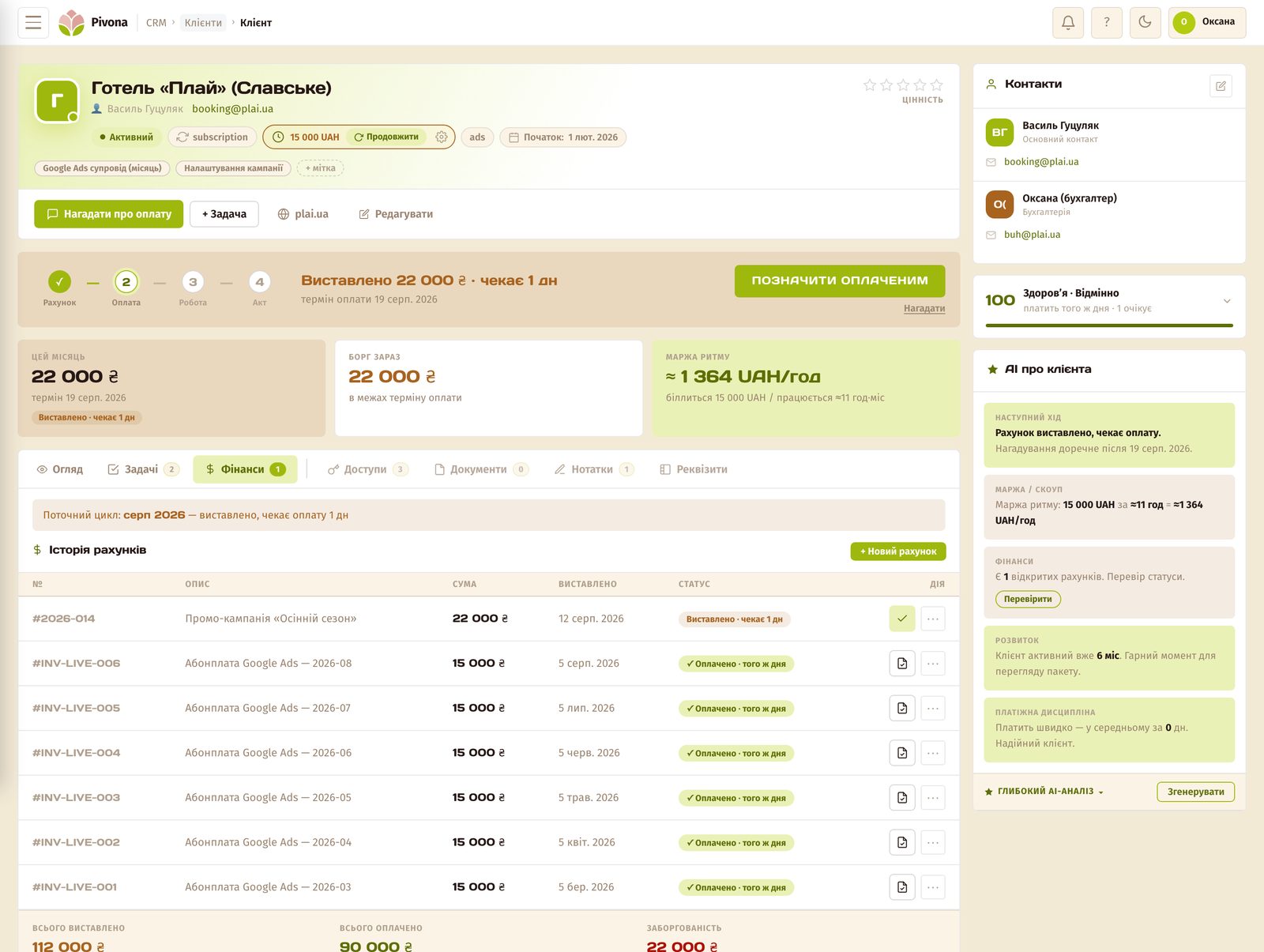
After the import, clients sit in the Clients section, money in Finance, services in Packages. Open three or four cards and check whether the amounts match. If something’s gone wrong, the completion screen has “Cancel this import”: it deletes exactly the records from this run.
You can upload your history in batches: clients today, last year’s payments the next evening, and every run is checked against what’s already in the database.
Step 5. Your FOP details, then integrations
One thing is mandatory: your FOP (sole trader) details and tax group, five minutes in your profile. Without them, invoices and acts won’t be generated, and the tax calendar won’t start.
Everything else is whenever you want. Telegram gives you notifications and digests in chat instead of the account. Freelancehunt connects with a single token, and new projects from the exchange land straight in your lead pipeline.
What won’t move over
So you’re not left looking for what isn’t there.
- Wiki. Procedures with checklists and personal notes in free-form structure stay in Notion. Notes about a specific client are moved by hand into the “Notes” tab on their card.
- Formulas and relations between databases. Pivona calculates client money on its own, but any other custom calculations of yours won’t move over and won’t be replaced.
- Images and screenshots. Text recognition from images is currently switched off, so data that only existed as a screenshot needs to be pasted as text into the “Or paste as text” field.
- Passwords and access credentials. These are stripped out of the text before processing, and the passport shows, as a separate block, which files they were found in. Move them by hand into the client’s card — there’s a dedicated tab for them. Raw files are deleted once the import is confirmed.
If you don’t want to sign up just to check
At app.pivona.io/try Unpack works without an account: you drop in your files and get a passport built from your own data. One free run per address, with nothing written to a database. If you sign up afterwards, the session carries over into your new account, and you won’t have to upload the files again.
How it ends
One evening, a few tabs, one archive. At the end, your clients sit in cards with their totals, leads are in the pipeline, and Notion is left doing what it’s actually built for: notes. First 30 days with no card required at pivona.io/pro-pivona.